🎙️ Build Your Own AI Voice Generator with edge-tts
Have you ever wanted your Python app to speak like a human? Not just robotic beeps or lifeless monotone voices — but actual realistic, human-like speech?
In this post, I'll show you how to use a powerful library called edge-tts to convert any text into ultra-realistic AI speech, using just 5 lines of Python code. It's fast, free, and ridiculously simple.
Let's get started!
🧰 What You'll Need
Before we jump in, here's what you need:
- Python 3.7+
- An internet connection (the TTS happens via Microsoft's online engine)
- A few seconds of your time 😉
🚀 Step 1: Install the edge-tts Library
We're using the edge-tts package, a wrapper around Microsoft Edge's neural TTS (Text-to-Speech) service. It gives you access to the same ultra-realistic voices used in Azure — with zero API keys and zero cost.
Open your terminal and run:
That's it. You're ready to go!
✨ Step 2: Write the Magic Code
Here's the full working code:
Let's break this down:
-
edge_tts.Communicate(text, voice)creates the speech object.
-
await tts.save("filename.mp3")generates and saves the speech as an MP3 file.
-
asyncio.run(main())kicks off the process.
Save the file as main.py and run:
💡 Output: You'll get a file called test.mp3 in the same folder. Open it and listen — it's incredibly realistic!
🎤 Step 3: Customize the Voice
Microsoft offers dozens of voices, covering different languages, regions, genders, and tones.
To list all available voices, use:
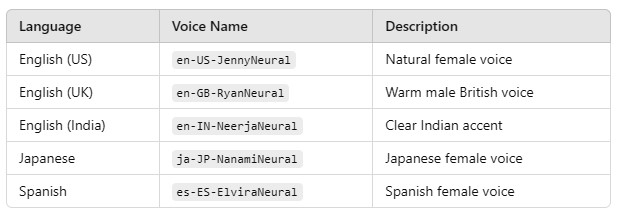
Just replace the voice name in the code:
And you're good to go!
💡 Use Cases
This simple TTS engine opens up tons of possibilities:
- 🎧 Narrate articles or blogs
- 📚 Generate audiobooks
- 🤖 Voice assistants
- 🎙️ Podcast automation
- 📢 Alert systems or voice UIs
Want to generate speech from long scripts or text files? Simply read from a file:
Then pass text to the Communicate() function.
🛠️ Common Errors
If you see this error:
Here are the usual fixes:
- Check your internet connection.
-
Use a valid voice name (
--list-voicesis your friend).
-
Upgrade
edge-ttsto the latest version:
📦 Wrapping Up
In just a few lines of Python, you've built a fully working AI voice generator using Microsoft's neural speech engine. The quality is good enough for production-level use — no joke.
Now that you've unlocked the power of speech, what will you build next?
About the Author: gs_admin
A senior technical contributor specializing in architectural designs, software optimization, database structures, and developer education. Passionate about writing clean code and sharing engineering knowledge.